2012年12月9日日曜日

テキストをファイルに保存する

TextBox に入力したテキストを、ファイルを指定して保存します。
メニューバーの「名前を付けて保存」をクリックすると、ファイル保存ダイアログ SaveFileDialog が開きます。
TextBoxのプロパティ AcceptsReturn を True にすると テキストボックス内で Enterキーで改行ができるようになります。


MainWindow.xaml

<Window x:Class="SaveText.MainWindow"
        xmlns="http://schemas.microsoft.com/winfx/2006/xaml/presentation"
        xmlns:x="http://schemas.microsoft.com/winfx/2006/xaml"
        Height="200" Width="300">
    <Window.CommandBindings>
        <CommandBinding Command="SaveAs" Executed="SaveAsCommandHandler" />
    </Window.CommandBindings>
    <Grid>
        <Grid.RowDefinitions>
            <RowDefinition Height="Auto"/>
            <RowDefinition Height="*"/>
        </Grid.RowDefinitions>
        <Menu Grid.Row="0">
            <MenuItem Command="SaveAs"/>
        </Menu>
        <TextBox Grid.Row="1" Name="textbox1" AcceptsReturn="True" />
    </Grid>
</Window>

MainWindow.xaml.cs

using Microsoft.Win32;
using System.IO;
using System.Windows;
using System.Windows.Input;

namespace SaveText
{
    public partial class MainWindow : Window
    {
        public MainWindow()
        {
            InitializeComponent();
        }

        private void SaveAsCommandHandler(object sender, ExecutedRoutedEventArgs e)
        {
            SaveFileDialog sfd = new SaveFileDialog();
            if (sfd.ShowDialog() == true)
            {
                File.WriteAllText(sfd.FileName, this.textbox1.Text);
            }
        }
    }
}

2012年12月8日土曜日

トーナメント表を作る


トーナメント表は、ツリー構造をしています。
なので、トーナメント表のデータは、XMLで記述することにします。

要素名はなんでもかまいません。
トーナメント表の性質として、ツリー構造をつぎのように制限します。

  • リーフのテキストノードにチーム名や個人名を記述する。
  • 中間ノードは、2つのノードをもつ。(二分岐)

描画するアルゴリズムは、2回、再帰的にノードをたどっています。
1回目は、SetLineAttributeメソッドで、リーフの深さと数をカウントし、帰りがけに中間ノードのy座標の位置を計算しています。
2回目は、DrawLineメソッドで、実際の線分を描画しています。

XMLファイルのサンプルです。

<?xml version="1.0" encoding="utf-8" ?>
<game>
  <game>
    <game>
      <team>悟空</team>
      <team>ベジータ</team>
    </game>
    <team>クリリン</team>
  </game>
  <game>
    <team>フリーザ</team>
    <team>ヤムチャ</team>
  </game>
</game>


このファイルを開くとこうなります。


MainWindow.xaml

<Window x:Class="TournamentTable.MainWindow"
        xmlns="http://schemas.microsoft.com/winfx/2006/xaml/presentation"
        xmlns:x="http://schemas.microsoft.com/winfx/2006/xaml"
        Height="350" Width="525">
    <Window.CommandBindings>
        <CommandBinding Command="Open" Executed="OpenCommandHandler"/>
    </Window.CommandBindings>
    <Grid>
        <Grid.RowDefinitions>
            <RowDefinition Height="Auto"/>
            <RowDefinition Height="*"/>
        </Grid.RowDefinitions>
        <Menu Grid.Row="0">
            <MenuItem Command="Open" />
        </Menu>
        <Canvas Grid.Row="1" Name="canvas1" Margin="10">
            <Canvas.Resources>
                <Style TargetType="Line">
                    <Setter Property="Stroke" Value="Black"/>
                </Style>
            </Canvas.Resources>
        </Canvas>
    </Grid>
</Window>

MainWindow.xaml.cs

using Microsoft.Win32;
using System.Windows;
using System.Windows.Controls;
using System.Windows.Documents;
using System.Windows.Input;
using System.Windows.Shapes;
using System.Xml;

namespace TournamentTable
{
    public partial class MainWindow : Window
    {
        private int scale = 40;
        private double textWidth = 60;
        private int maxLevel;
        private int leafCount;

        public MainWindow()
        {
            InitializeComponent();
        }

        private void OpenCommandHandler(object sender, ExecutedRoutedEventArgs e)
        {
            OpenFileDialog ofd = new OpenFileDialog();
            if (ofd.ShowDialog() == true)
            {
                XmlDocument xdoc = new XmlDocument();
                xdoc.Load(ofd.FileName);
                this.maxLevel = 0;
                this.leafCount = 0;
                SetLineAttribute(xdoc.DocumentElement, 0);
                this.canvas1.Children.Clear();
                DrawLine(xdoc.DocumentElement);
            }
        }

        private void DrawLine(XmlElement ele)
        {
            double level = double.Parse(ele.Attributes["level"].Value);
            double y = double.Parse(ele.Attributes["y"].Value) * scale;
            if (ele.ChildNodes.Count == 2)
            {
                XmlElement c1 = (XmlElement)ele.ChildNodes[0];
                XmlElement c2 = (XmlElement)ele.ChildNodes[1];
                DrawLine(c1);
                DrawLine(c2);

                Line cLine = new Line();
                cLine.X1 = textWidth + (maxLevel - level) * scale;
                cLine.Y1 = double.Parse(c1.Attributes["y"].Value) * scale;
                cLine.X2 = textWidth + (maxLevel - level) * scale;
                cLine.Y2 = double.Parse(c2.Attributes["y"].Value) * scale;
                this.canvas1.Children.Add(cLine);

                Line line = new Line();
                line.X1 = textWidth + (maxLevel - level) * scale;
                line.Y1 = y;
                line.X2 = textWidth + (maxLevel - level + 1) * scale;
                line.Y2 = y;
                this.canvas1.Children.Add(line);
            }
            else
            {
                Line line = new Line();
                line.X1 = textWidth + (maxLevel - level + 1) * scale;
                line.Y1 = y;
                line.X2 = textWidth;
                line.Y2 = y;
                this.canvas1.Children.Add(line);

                Border border = new Border();
                border.Height = scale;
                border.Width = textWidth;
                border.SetValue(Canvas.TopProperty, y - 0.5 * scale);
                TextBlock tb = new TextBlock(new Run(ele.InnerText));
                tb.VerticalAlignment = System.Windows.VerticalAlignment.Center;
                border.Child = tb;
                this.canvas1.Children.Add(border);
            }
        }

        private void SetLineAttribute(XmlElement ele, int level)
        {
            maxLevel = System.Math.Max(maxLevel, level);
            if (ele.ChildNodes.Count == 2)
            {
                XmlElement c1 = (XmlElement)ele.ChildNodes[0];
                XmlElement c2 = (XmlElement)ele.ChildNodes[1];
                SetLineAttribute(c1, level + 1);
                SetLineAttribute(c2, level + 1);
                double y = (double.Parse(c1.Attributes["y"].Value) + double.Parse(c2.Attributes["y"].Value)) / 2.0;
                ele.SetAttribute("y", y.ToString());
            }
            else
            {
                leafCount++;
                ele.SetAttribute("y", leafCount.ToString());
            }
            ele.SetAttribute("level", level.ToString());
        }
    }
}

2012年12月6日木曜日

DataGridのセル内で改行

DataGridでセル内のテキストを編集中に、改行を含むテキストを入力したい場合があります。
Enterキー のみの場合はセルの編集を確定し、Shift + Enterキー で改行を入力できるようにします。

ここでは、DataGrid の列の自動生成を有効にするので、テキストを編集するセルのスタイルは、DataGridTextColumn の EditingElementStyle プロパティで指定できます。
このスタイルの KeyDown イベントに editingTextBox_KeyDown メソッドを登録しておきます。
editingTextBox_KeyDown メソッドは、押されたキーが Shift + Enterキーの場合は、テキストカーソルのところに改行を挿入します。


MainWindow.xaml

<Window x:Class="DataGridTest.MainWindow"
        xmlns="http://schemas.microsoft.com/winfx/2006/xaml/presentation"
        xmlns:x="http://schemas.microsoft.com/winfx/2006/xaml"
        Height="300" Width="450">
    <Window.Resources>
        <Style TargetType="TextBox" x:Key="editingTextBoxStyle">
            <EventSetter Event="KeyDown" Handler="editingTextBox_KeyDown" />
        </Style>
    </Window.Resources>
    <DataGrid Grid.Row="1" Name="dataGrid"
              CanUserAddRows="False" CanUserDeleteRows="False"
              AutoGeneratingColumn="dataGrid_AutoGeneratingColumn"/>
</Window>

MainWindow.xaml.cs

using System.Data;
using System.Windows;
using System.Windows.Controls;
using System.Windows.Input;

namespace DataGridTest
{
    public partial class MainWindow : Window
    {
        public MainWindow()
        {
            InitializeComponent();

            DataTable dt = new DataTable();
            dt.Columns.Add();
            dt.Columns.Add();
            dt.Columns.Add();
            dt.Rows.Add("走れメロス", "太宰治", "メロスは激怒した。");
            dt.Rows.Add("斜陽", "太宰治", "朝、食堂でスウプを一さじ、");
            this.dataGrid.ItemsSource = dt.DefaultView;
        }

        private void dataGrid_AutoGeneratingColumn(object sender, DataGridAutoGeneratingColumnEventArgs e)
        {
            ((DataGridTextColumn)e.Column).EditingElementStyle = (Style)this.Resources["editingTextBoxStyle"];
        }

        private void editingTextBox_KeyDown(object sender, KeyEventArgs e)
        {
            if (Key.Return == e.Key && 0 < (ModifierKeys.Shift & e.KeyboardDevice.Modifiers))
            {
                TextBox tb = (TextBox)sender;
                int caret = tb.CaretIndex;
                tb.Text = tb.Text.Insert(caret, "\r\n");
                tb.CaretIndex = caret + 1;
                e.Handled = true;
            }
        }
    }
}

2012年12月5日水曜日

Storyboard で飛び跳ねるボール

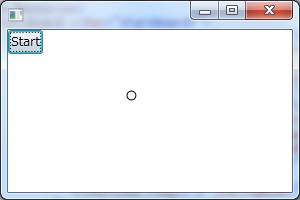
WPFのアニメーションの機能を使って、「飛び跳ねるボール」と同じようなアニメーションを実現しています。
ボールの動きは、それぞれ x座標、y座標 に対応する DoubleAnimation を使います。
y座標は、重力の影響を受けるように、PowerEase で 高さの2乗に比例させています。

Startボタンをクリックすると、ボールが動き出します。
ウィンドウサイズを変更して、再度Startボタンを押すと、ウィンドウ内いっぱいに飛び回ります。


MainWindow.xaml

<Window x:Class="BouncingBall2.MainWindow"
        xmlns="http://schemas.microsoft.com/winfx/2006/xaml/presentation"
        xmlns:x="http://schemas.microsoft.com/winfx/2006/xaml"
        Height="200" Width="300">
    <Window.Resources>
        <Storyboard x:Key="storyboard1">
            <DoubleAnimation Storyboard.TargetName="translateTransform1"
                             Storyboard.TargetProperty="X" From="0"
                             To="{Binding ElementName=canvas1,Path=ActualWidth}"
                             Duration="0:0:1" AutoReverse="true"
                             RepeatBehavior="Forever" />
            <DoubleAnimation Storyboard.TargetName="translateTransform1"
                             Storyboard.TargetProperty="Y" From="0"
                             To="{Binding ElementName=canvas1,Path=ActualHeight}"
                             Duration="0:0:0.3" AutoReverse="true"
                             RepeatBehavior="Forever">
                <DoubleAnimation.EasingFunction>
                    <PowerEase Power="2" EasingMode="EaseIn"/>
                </DoubleAnimation.EasingFunction>
            </DoubleAnimation>
        </Storyboard>
    </Window.Resources>
    <Canvas Name="canvas1">
        <Button Click="Button_Click">Start</Button>
        <Ellipse Width="10" Height="10" Fill="WhiteSmoke" Stroke="Black">
            <Ellipse.RenderTransform>
                <TranslateTransform x:Name="translateTransform1" X="0" Y="0" />
            </Ellipse.RenderTransform>
        </Ellipse>
    </Canvas>
</Window>

MainWindow.xaml

using System.Windows;
using System.Windows.Media.Animation;

namespace BouncingBall2
{
    public partial class MainWindow : Window
    {
        public MainWindow()
        {
            InitializeComponent();
        }

        private void Button_Click(object sender, RoutedEventArgs e)
        {
            ((Storyboard)this.Resources["storyboard1"]).Begin();
        }
    }
}

2012年12月4日火曜日

DispatcherTimer で 飛び跳ねるボール

「飛び跳ねるボール」では、3つのボールの座標を、それぞれ別スレッドの非同期処理で計算していました。
ここでは、同じようなアニメーションを、DispatcherTimer を使って実現しています。
DispatcherTimer の Tick イベントの処理で直接 UIスレッドにアクセスできるので、「飛び跳ねるボール」で使ったような座標通知用のメッセージクラス(Location クラス)は必要ありません。

15ミリ秒ごとに処理される timer_Tickメソッドで、3つの円の中心座標、EllipseGeometry.Center を書き換えています。


MainWindow.xaml

<Window x:Class="BouncingBall.MainWindow"
        xmlns="http://schemas.microsoft.com/winfx/2006/xaml/presentation"
        xmlns:x="http://schemas.microsoft.com/winfx/2006/xaml"
        Height="200" Width="300" 
        SizeChanged="Window_SizeChanged" Loaded="Window_Loaded">
    <Canvas Name="canvas1">
        <Canvas.Resources>
            <Style TargetType="Path">
                <Setter Property="Fill" Value="WhiteSmoke"/>
                <Setter Property="Stroke" Value="Black"/>
            </Style>
        </Canvas.Resources>
        <Path>
            <Path.Data>
                <EllipseGeometry x:Name="ellipse1" RadiusX="5" RadiusY="5" />
            </Path.Data>
        </Path>
        <Path Opacity=".5">
            <Path.Data>
                <EllipseGeometry x:Name="ellipse2" RadiusX="5" RadiusY="5" />
            </Path.Data>
        </Path>
        <Path Opacity=".2">
            <Path.Data>
                <EllipseGeometry x:Name="ellipse3" RadiusX="5" RadiusY="5" />
            </Path.Data>
        </Path>
    </Canvas>
</Window>

MainWindow.xaml.cs

using System;
using System.Diagnostics;
using System.Windows;
using System.Windows.Threading;

namespace BouncingBall
{
    public partial class MainWindow : Window
    {
        private int rateY = 1200;
        private int rateX = 1000;
        private double rateY2;
        private int harfRateY;
        private double rateX2;
        private int harfRateX;
        private Stopwatch sw = new Stopwatch();

        public MainWindow()
        {
            InitializeComponent();
        }

        private void Window_SizeChanged(object sender, SizeChangedEventArgs e)
        {
            rateY2 = rateY / Math.Sqrt(this.canvas1.ActualHeight) * 0.52;
            harfRateY = rateY / 2;
            rateX2 = rateX / this.canvas1.ActualWidth * 0.55;
            harfRateX = rateX / 2;

            sw.Restart();
        }

        private void Window_Loaded(object sender, RoutedEventArgs e)
        {
            DispatcherTimer timer = new DispatcherTimer();
            timer.Tick += timer_Tick;
            timer.Interval = new TimeSpan(0, 0, 0, 0, 15);
            timer.Start();
        }

        private void timer_Tick(object sender, EventArgs e)
        {
            if (!sw.IsRunning)
            {
                return;
            }

            long milliseconds = sw.ElapsedMilliseconds;
            this.ellipse1.Center = GetPoint(milliseconds);
            this.ellipse2.Center = GetPoint(milliseconds - 50);
            this.ellipse3.Center = GetPoint(milliseconds - 100);
        }

        private Point GetPoint(long milliseconds)
        {
            if (milliseconds < 0)
            {
                milliseconds = 0;
            }

            long fractionY = milliseconds % rateY;
            if (fractionY >= harfRateY)
            {
                fractionY = rateY - fractionY;
            }
            double sqrtY = fractionY / rateY2;
            double y = sqrtY * sqrtY;

            long fractionX = milliseconds % rateX;
            if (fractionX >= harfRateX)
            {
                fractionX = rateX - fractionX;
            }
            double x = fractionX / rateX2;

            return new Point(x, y);
        }
    }
}